The problem: it looked finished
A travel writer I work with had her one-day itineraries split across two websites. One was a destination-guide site she co-published with another writer. The other was her own personal site. The plan was simple: retire the shared site and bring her writing home to her own domain.
Here’s the good news I found on day one. Her own site was already a full copy of the shared one, made about a year earlier. All 58 of her published itineraries were there, at the same web addresses. Pages loaded. Nothing threw an error.
It looked finished.
Then I started clicking. The region pages, the ones that gather every itinerary for, say, Colorado, came up nearly empty. Region descriptions were missing. Subtitles were gone. And photos had quietly vanished: 87 photo spots across 32 itineraries were showing nothing at all.

Four bugs, one cause
These didn’t show up all at once. I found them hours apart, and each one looked like its own small problem. Empty region pages. Missing descriptions. Missing subtitles. Missing hero images.
The tempting move is to fix them one at a time. Patch the page, rewrite the description, re-upload the photo, move on. That’s how a one-week job turns into six-weeks.
So I kept asking why, and they all came back to the same place. When the site was copied, it brought over the posts and the category names. Each itinerary still knew it was “Telluride” or “Big Island.” What it didn’t bring was everything that tied those categories together: which region sits inside which state, the written descriptions, the extra details attached to each region, and a large share of the actual photo files.
The words were there. The structure holding them up wasn’t.
What I fixed
Once the cause was clear, the job got smaller. Instead of rebuilding the site, I put the missing layer back.
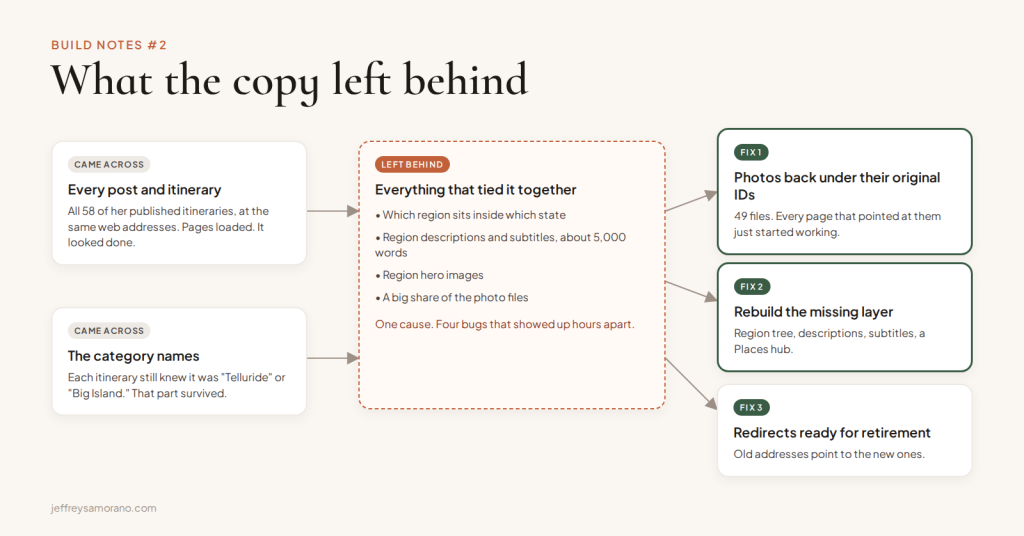
- The photos, under their original ID numbers. This was the key move. Every photo in WordPress has an ID number, and every itinerary page points at its photos by those numbers. I checked and found that the old ID numbers were sitting unused on the new site. So instead of uploading the photos as new files (which would have meant rewiring about a hundred references by hand), I put each one back under the exact number the pages were already looking for. 49 photos restored, and every page pointing at them just started working.
- The region structure. Rebuilt which region belongs to which state, so the region pages fill in properly again.
- Her writing. Recovered about 5,000 words of her region descriptions, plus 26 subtitles, that only existed on the old site.
- A way to browse. Built a Places hub so readers can find itineraries by state, and fixed the archive pages that had been pointing at pieces of the old site.
- Redirects for retirement day. Every old itinerary address points at the same itinerary on her own site, so search rankings follow her when the shared site switches off.
Before and after, measured on the same 58 itineraries: 223 photos showing on the old site, 223 showing on the new one.
The parts that took the real time
The list above is tidy. These are the parts that ate the day.
Counting things wrong
My first pass said 78 photos were missing. The real number was 47. Some files had been saved with slightly different names on the new site, so a simple name comparison flagged them as missing when they loaded just fine. I only trusted the number after checking each one directly on the site, one at a time.
The site lying about success
Right after restoring a batch of photos, my check said zero of sixteen had worked. All sixteen had. The hosting company’s cache had remembered “not found” from before the restore and kept serving that answer for a few minutes. Lesson: when a result looks like a failure right after a change, clear the cache and check again before you panic.
Not hammering someone else’s server
The old site was still live, and the new one limits how many requests it accepts at once. Pull too fast and it starts refusing, and a refusal looks exactly like a missing file if you’re only checking for success. Everything ran slower and in order, on purpose.
Being careful with a live site
Each restore ran in small batches, skipped anything already in place, and could be run twice without doing harm. On a site someone is actively using, the boring safeguards are the whole job.
The part I’m proudest of
Finding the cause instead of treating four symptoms.
It would have been completely reasonable to call this a rebuild, quote it that way, and spend weeks recreating pages. The fix that actually worked was smaller and faster because it came from understanding what the copy had done, not from redoing it.
That’s the kind of work I like best. Elegance, not the most code. The fewest moves that make the whole thing right.
If you’ve moved anything recently, check this
A website move, a new CRM, a switch to a new email platform. They all have the same trap: the obvious stuff comes across, the connective tissue doesn’t, and nothing complains.
So don’t stop at “the pages load.” Open the category pages. Look at the photos on older posts. Click the links that point between pages. If something feels thin, it probably is, and there’s usually one reason behind all of it.
And if you’d like a hand finding the quiet gaps in your own setup, the Digital Clarity Quiz takes about three minutes and shows you where to look.
Tools in this build: WordPress, Avada, a custom set of WordPress abilities for Claude, and my AI teammate for the audits.